
FluentRead - Open Source Translation Plugin
Chat Settings Options
In the System Settings -> Chat Settings of the TokenStream console, you can add the following shortcut options for easy one-click population to FluentRead on the Token Management page:
{ "流畅阅读": "fluentread" }🌊 FluentRead is an open-source browser translation plugin dedicated to providing a native-like reading experience.
- Project Address:
<https://github.com/Bistutu/FluentRead>
🌟 Core Features
Smart Translation Engine
- Multi-Engine Support: Supports 20+ translation engines
- Traditional Translation: Microsoft Translate, Google Translate, DeepL Translate, etc.
- AI Large Models: OpenAI, DeepSeek, Kimi, Ollama, etc.
- Custom Engine: Supports custom translation service configuration
Immersive Reading Experience
- Bilingual Comparison: Original and translated text displayed side-by-side for easier reading
- Selection Translation: Select any text to get instant translation results
- One-Click Copy: Quickly copy translated text to improve reading efficiency
- Full-Page Translation: One-click translation of the entire webpage with a floating button, no page refresh required
Privacy and Customization
- Privacy Protection: All data stored locally, open-source and transparent code
- High Customization: Rich customization options to meet different scenario needs
- Completely Free: Open-source and free, non-commercial project
📦 Installation Methods
| Browser | Installation Method |
|---|---|
| Chrome | Chrome Web Store | Domestic Mirror |
| Edge | Edge Add-ons Store |
| Firefox | Firefox Add-ons Store |
🚀 Configuration Methods
Import Configuration from TokenStream Console (Recommended)
After the FluentRead plugin is installed in your browser, opening the TokenStream console -> Token Management page will display a prompt to add FluentRead.
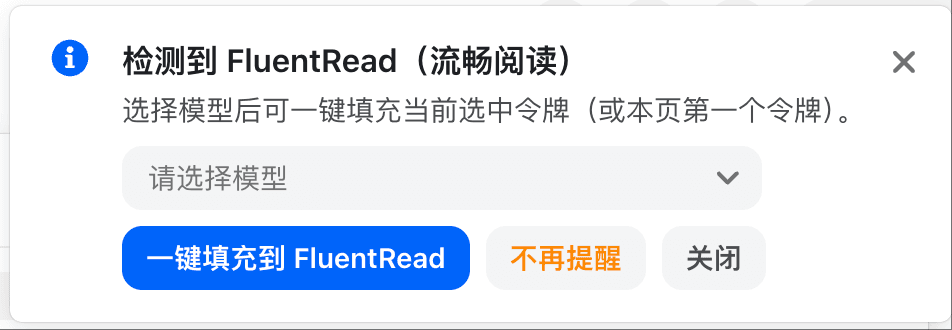
After selecting a model, click 'One-click fill to FluentRead', and a confirmation window will pop up. Check if the corresponding information is correct.
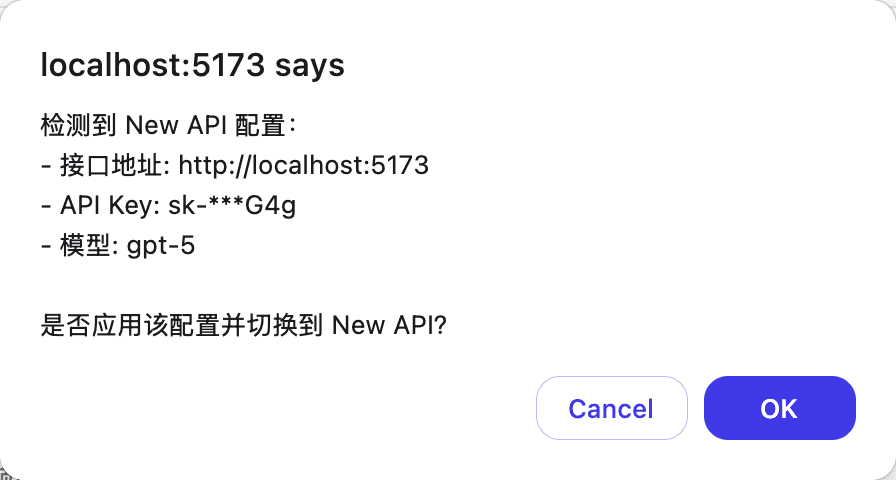
After confirming the import, the TokenStream configuration in FluentRead will be enabled.
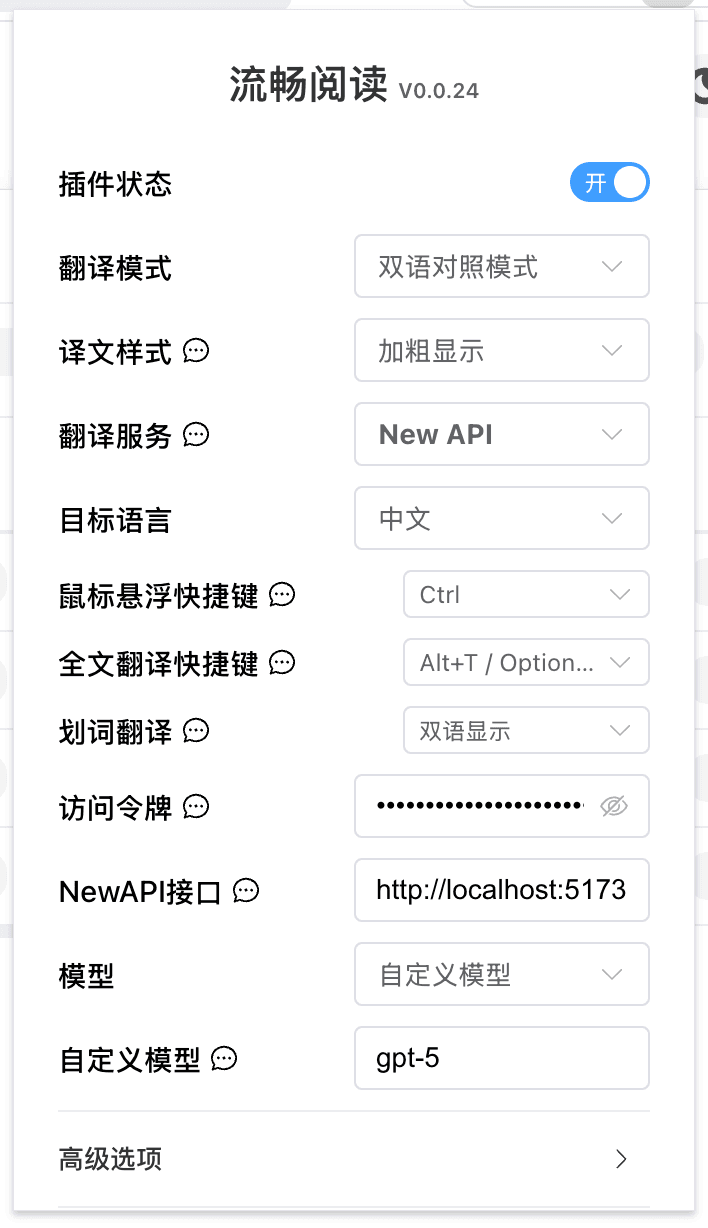
Manually Fill in Configuration in FluentRead
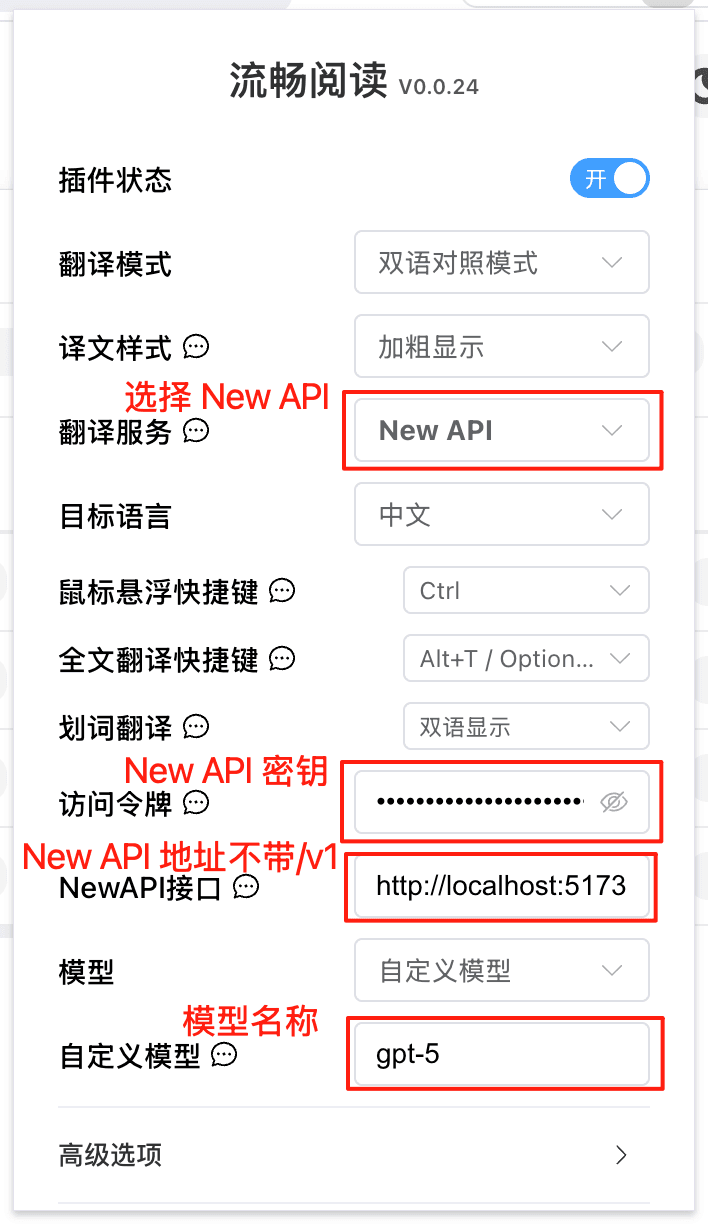
| Configuration Item | Content |
|---|---|
| Translation Service | NewAPI |
| Access Token | NewAPI Key |
| NewAPI Endpoint | NewAPI Deployment Address (without /v1) |
| Model | Select from list, or custom model |
| Custom Model | Model Name |
How is this guide?